2009-04-27
More on iPhoto '09 and Flickr
A couple of months ago, I posted some first thoughts on iPhoto '09 and its Flickr integration. Despite the fact that it's not amenable to scripting, I liked the idea of having photos be editable in either iPhoto or Flickr that I kept using the native support to upload photos.
Of course, as Fraser Speirs said, "iPhoto '09 really, really wants to make photosets for you." So how to upload a few images? Well, dragging an image adds it to a set, and as you'd hope, dragging images to an iPhoto set starts an upload going. However, there's a huge annoyance here: to get ordering in your photostream, you have to drop the images in one by one. (Flickr sets can be ordered post-upload, but you can't reorder your photostream¹.)
Generally, the syncing of metadata has been great- when I've changed a location (or even photo) it's worked fine. However, it's also been worryingly fragile. I think I've had issues about once a fortnight with an upload failing (either because of a temporary issue with Flickr, or network congestion, or just someone sneezing down the road). iPhoto then gets into a confused state. You can't abort the sync and quit; eventually it'll either crash of its own accord, or I'll get fed up and force quit. Upon restarting, I find it's forgotten which photos existed in the set, so it downloads the originals from Flickr and breaks the connection. Either that, or it just gives up.
At least the worst-case has never happened: iPhoto has never deleted a photo from Flickr without me asking it to explicitly. (I'd "only" lose comments and group metadata, but that's quite enough, thanks.)
Edit: Of course, just after publishing iPhoto did just that: it lost a week of photos that I'd posted via its uploader. I'm more or less able to recreate them, I think, but I've left broken links and dropped favourites. I hate to have done that to people. (For what it's worth, I think I'm somewhat to blame. See, when iPhoto gets confused, it'll delete its connection, and then restore the image by downloading it from Flickr. However, this evening, before it had finished, I deleted the "images" (actually placeholders). I'm sure that in the past, both iPhoto and myself have done this and both the Flickr and local copies have stayed intact. Today, the Flickr copies were removed.)
So, what now? I could hope that a point release of iPhoto makes it more reliable, but to be honest, I feel like this is actually a Really Hard Problem, and I can imagine that Apple care more about Facebook. Anyway, 8.0.2 doesn't seem to have made the slightest bit of difference, and now I've given up on the whole experiment and reverted to using Flickr Export.
Of course, that don't offer two-way sync either, because previous versions of iPhoto didn't have anywhere to store the metadata, and the current version doesn't document how to². Aperture does have a more expressive API, so Flickr Export for that app does offer syncing (although I suspect not back-filling), and I have other reasons to consider an upgrade (not least, how to handle libraries of RAW files that easily fill a laptop hard drive).
Still, it feels like a lost opportunity. Ah well.
¹ Actually, not quite true: you can fiddle with the "date uploaded" field, but only in the Organizer. It's not exactly drag and drop. Usually I'm fine with that, but then, I'm used to apps that behave themselves. ↩
² Apparently F-Script and PyObjC (and presumably, somehow, ObjC itself) allow you to inspect running apps, so at some point I need to figure out how to use one or more of them to inspect the blobs that I discovered were stored in the SQLite database for Flickr syncing. ↩
2009-04-06
How to use Daytum
Daytum, the personal information tracking site by Ryan Case and Nicholas Feltron, came out of beta just this weekend. I've been using it (on and off) for a while, and a couple of weeks ago I wondered on Twitter if it was just me that couldn't wrap his head around how to use the site. Someone (who's private, so gets to remain nameless) pointed out that there was evidence that I wasn't.
Nonetheless, I'm not the sort to just give up, so I spent a good half an hour poking at the corners of the interface, and I think I've figured out a couple of fairly important, but somehow hidden, UI elements that I think will make the site easier to use for some.
This example will show you how to set up a "miles run" counter, how to backfill data, and introduce you to how to display that data.
First, get a Daytum account, log in, and then "edit your data sets". Create a new counter:

Once you've done that, you'll be presented with a nicely laid out form. Add an appropriate name (the public will never see this), then you'll be prompted to add your first item.

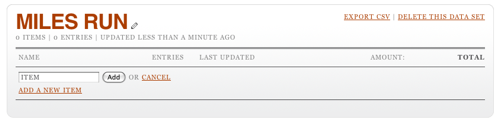
This item will show up in the user interface, so pick its name well. For our purposes, the only thing this counter is tracking is miles run, so "Miles Run" is an obvious name. As you add the item, you'll see the interface now ask for an amount.
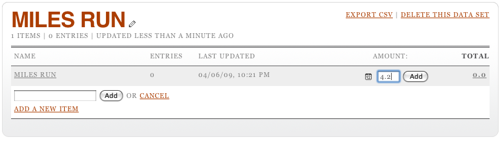
I'm adding 4.2 miles run. Click Add and the total will be update to reflect this. But I didn't just run 4.2 miles; I did that yesterday afternoon. To edit the date, you have to click on the total, then on the pencil icon that appears when you hover over the row that's revealed. This opens up a date editing widget. (Note it's always in US date format. Oh well.)
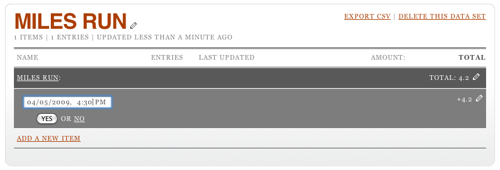
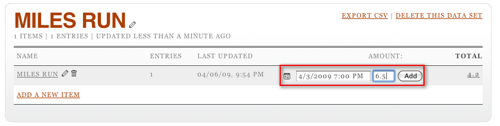
You can also edit the amount by, again, clicking on the pencil at the other end of the row. It turns out that it's possible to set the date and time when adding a row, too: click on the little calendar icon (it says "12" on it) before you submit your amount. This will let you see two rows when you click on the total.
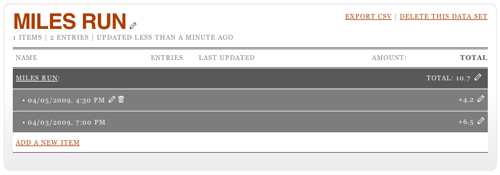
So, now you're adding data happily every time you run, but nobody in the world can see this. For that, you need to go back to your home page on Daytum and add a display.
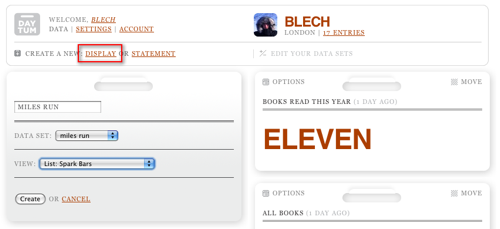
Note that this is where that "data set" name that nobody else sees is used: it ties a display to an underlying counter. You can also play around with different visualisation options; I'm partial to "Spark Bars" but you might prefer something else.
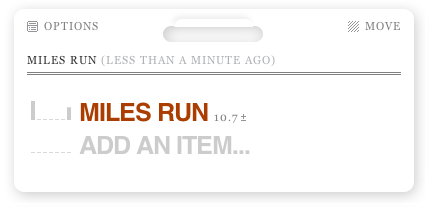
Hey presto, there's your progress. Or, in the case of my completely artificial data, lack of it. However, there's a nice trick here: the ± icon next to the total can be clicked on to allow you to add data directly from the display. You'll also note the same calendar icon, allowing you to back (or forward) date entries.
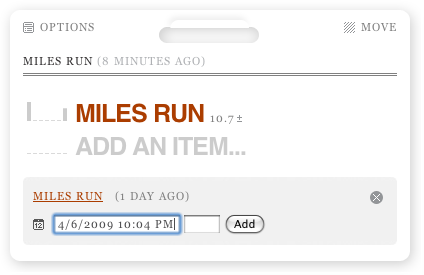
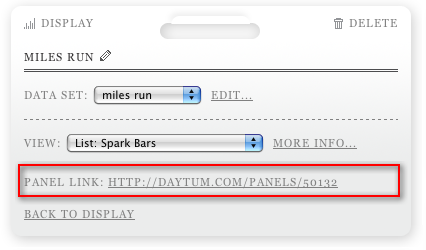
There's one final trick to mention. Once a display's been set up, click on "Options" at the top left and you can get a link direct to that panel.
Hopefully this has helped someone else who was a bit confused cut to the heart of the Daytum site.